Galaxy S7/S7 edge: How to Turn On Shape Correction?
Important Note: The information on this page is for Hong Kong products only. Models, sequences or settings will vary depending on location and/or where the product had been purchased. To be redirected to your local support page please click here.
‧ The front camera of Galaxy S7 uses wide-angle lens. It’s suitable for taking wide-angle photos when using the camera close to the subject (e.g. when taking a picture of yourself.)
Minor image distortion may occur in wide-angle photos.
‧ Enable Shape correction option to correct your face shape.
Shape correction option corrects your face distorted at the edges dynamically according to angles and distance from center. You can set the option on Beauty effects.
To set Shape correction option, please follow next steps.


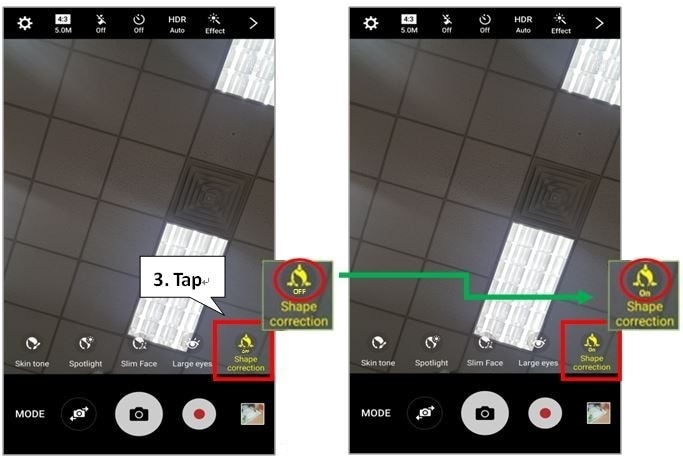
‧ Please note that after shape correction, the background may appear slightly distorted since the correction algorithm is applied to the overall image. If you do not want this, please use after deactivating the Shape correction.
If the above information does not match what your product is showing, you may check the User Manual for your product. If you are unable to solve the problem, please contact us for further assistance.
Thank you for your feedback!
Please answer all questions.
RC01_Static Content : This text is only displayed on the editor page