Galaxy TabPro S: How do I Use the Show Window App?
Important Note: The information on this page is for Hong Kong products only. Models, sequences or settings will vary depending on location and/or where the product had been purchased. To be redirected to your local support page please click here.
When you use Show Window, you can select a particular area of the screen to show full-screen on an external monitor. You can use tools to draw a picture or highlight items on the screen.
View Selected Area on External Monitor
1) Connect an external monitor to the device
※ Use a cable to connect to an external monitor
※ You can also wirelessly connect an external monitor (How do I use Screen Mirroring?).
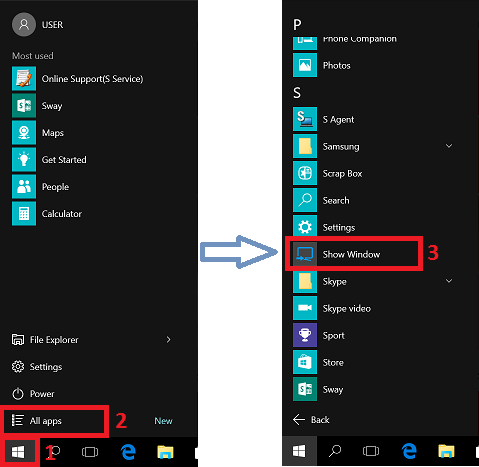
2) On the taskbar, choose Windows > All apps > Show Window
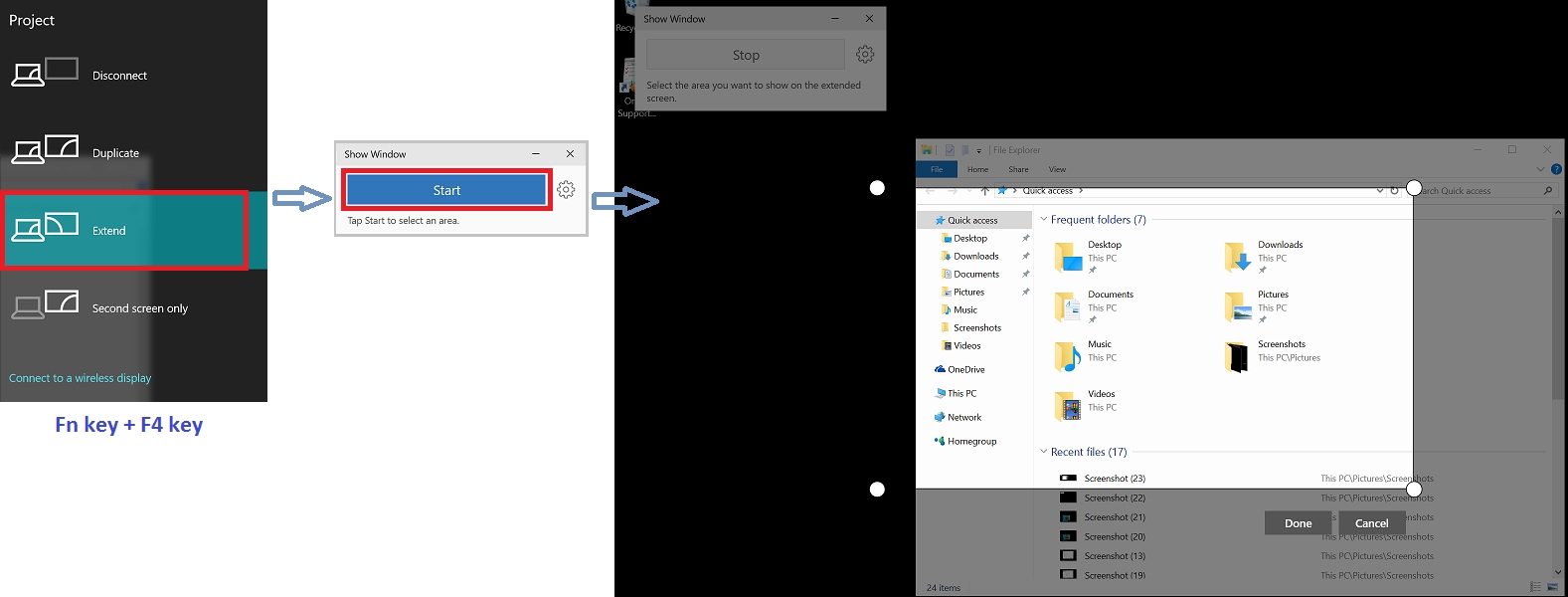
3) Tap Start and a white border will appear around the areas you select
Start only works when the display mode is set to Expand.
With the “Fn” key held down, tap the F4 key twice to choose Expand.
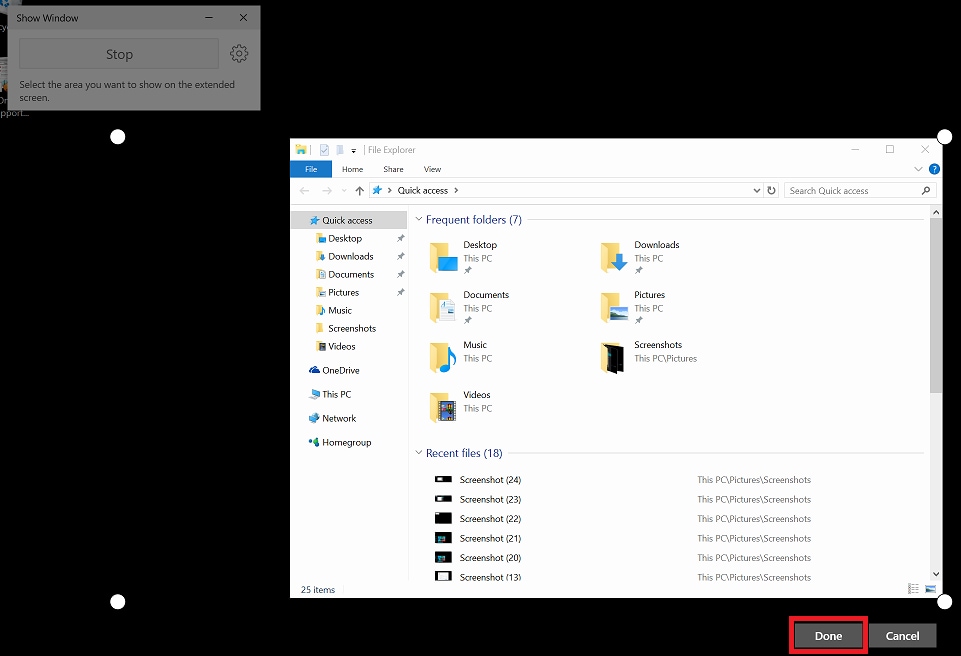
4) Drag while holding to select the area that will appear full-screen on the external monitor. Then, tap Done. The selected area will then be displayed on your external monitor.
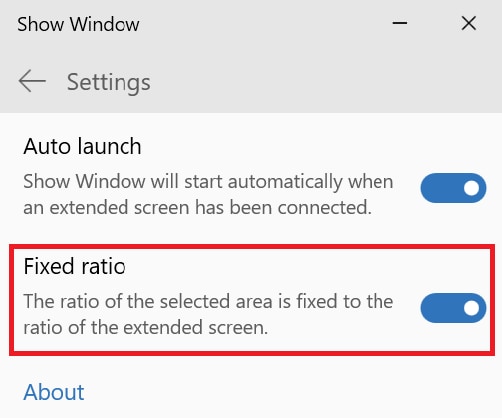
To set the ratio of the selected area to match that of the external monitor, please tap the Fixed Ratio switch to turn on the feature.
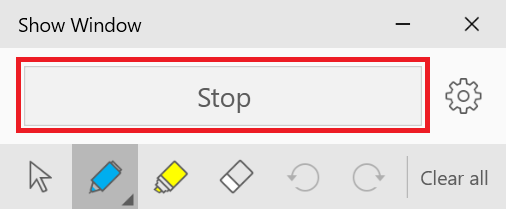
To stop showing the screen, tap Stop
Note:
※ To use this application, you must first connect the device to an external monitor.
HDMI cables and adapters for external monitors are sold separately.
Screen Images are for reference only. All other products and services mentioned may belong to their respective trademark owners.
If the above information does not match what your product is showing, you may check the User Manual for your product. If you are unable to solve the problem, please contact us for further assistance.
Thank you for your feedback!
Please answer all questions.
RC01_Static Content : This text is only displayed on the editor page