How do I connect to other devices through Wi-Fi Direct on my Samsung Galaxy Tab S?
Important Note: The information on this page is for Hong Kong products only. Models, sequences or settings will vary depending on location and/or where the product had been purchased. To be redirected to your local support page please click here.
Wi-Fi Direct allows devices to connect to each other directly via Wi-Fi. All devices must be Wi-Fi Direct-enabled for such a connection.
Connecting to Wi-Fi Direct devices
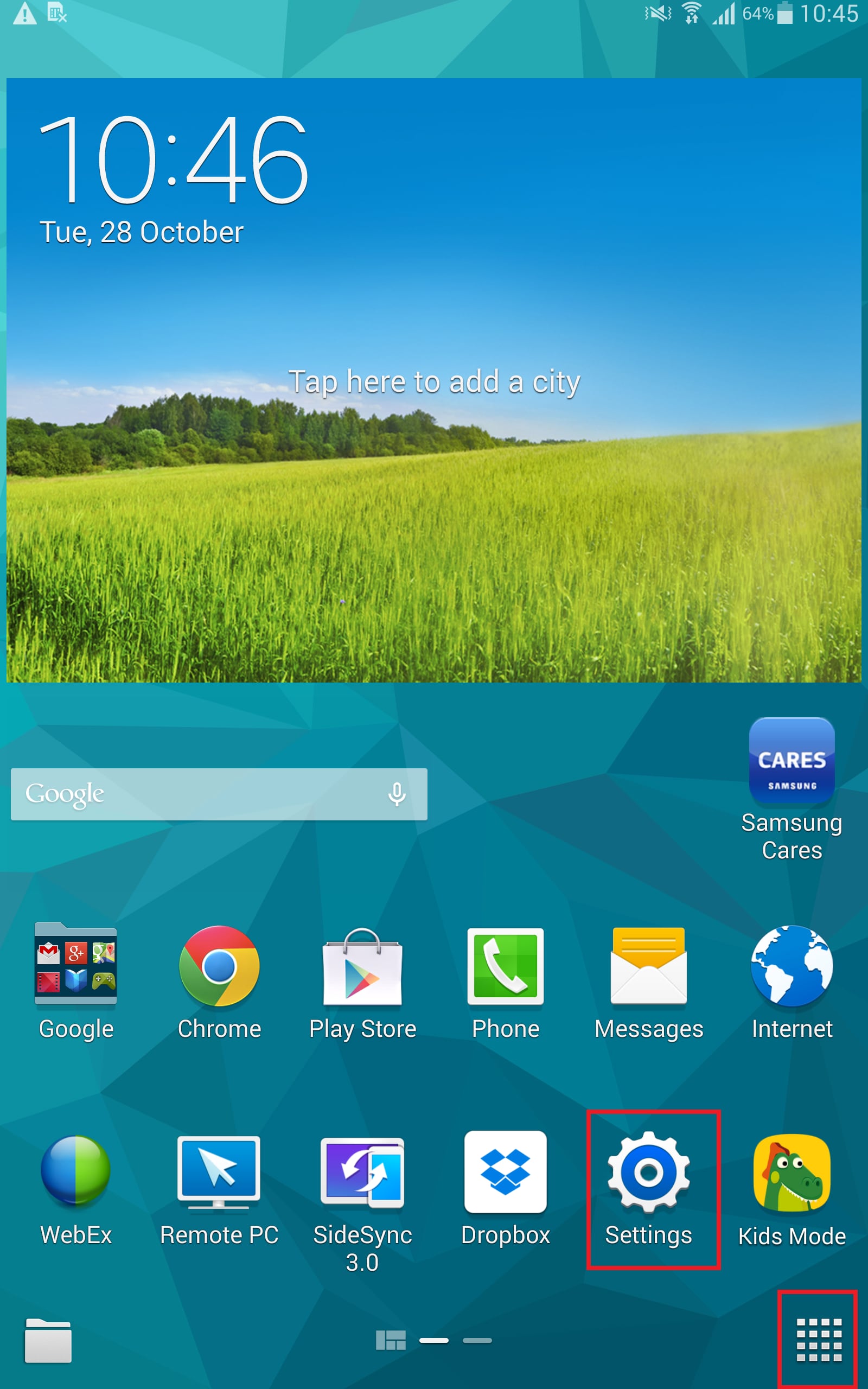
1. From the Home screen tap Apps and/or Settings.
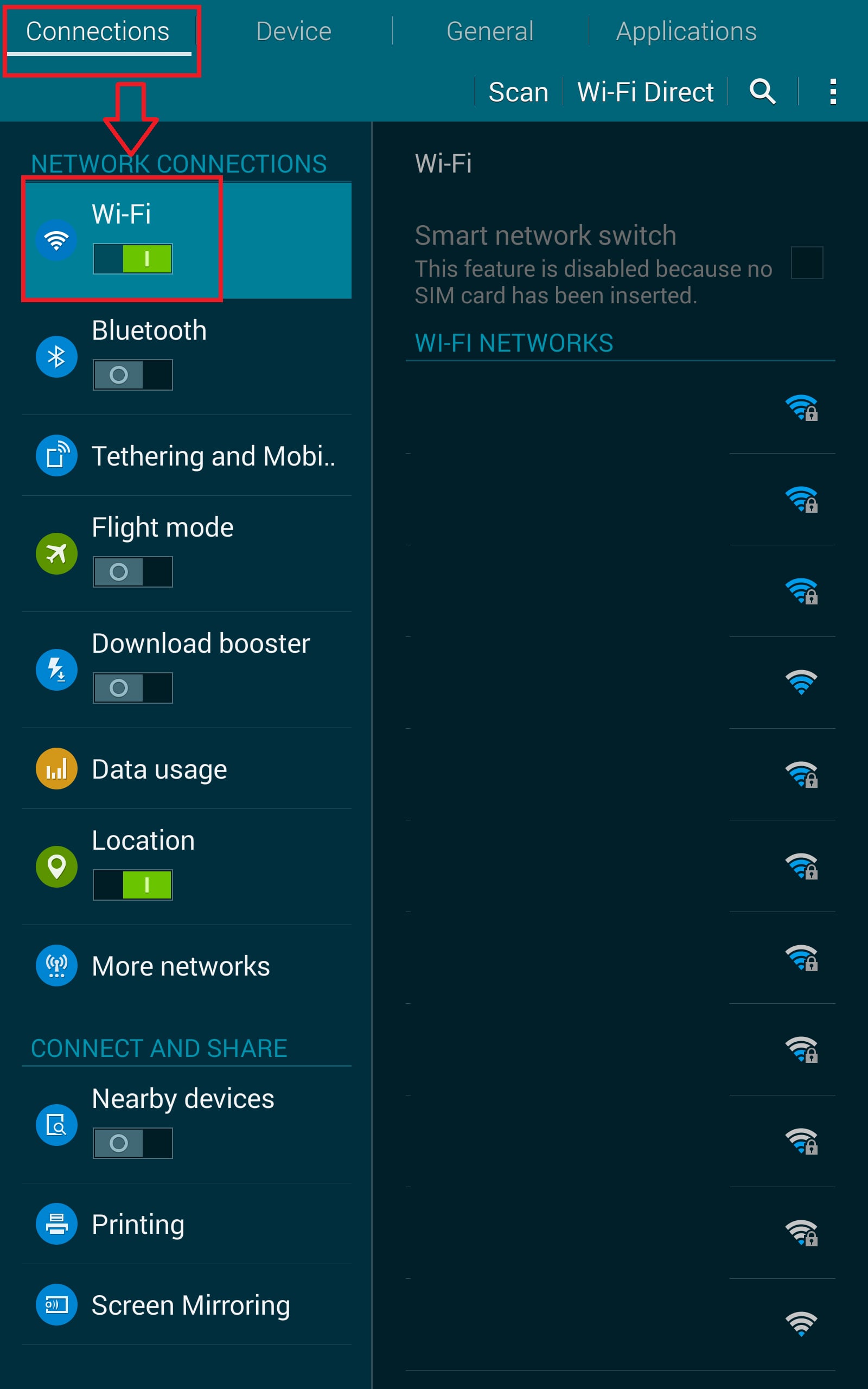
2. Tap the Connections tab and then tap Wi-Fi.
Note: Wi-Fi must be enabled and turned on in order to use Wi-Fi direct.
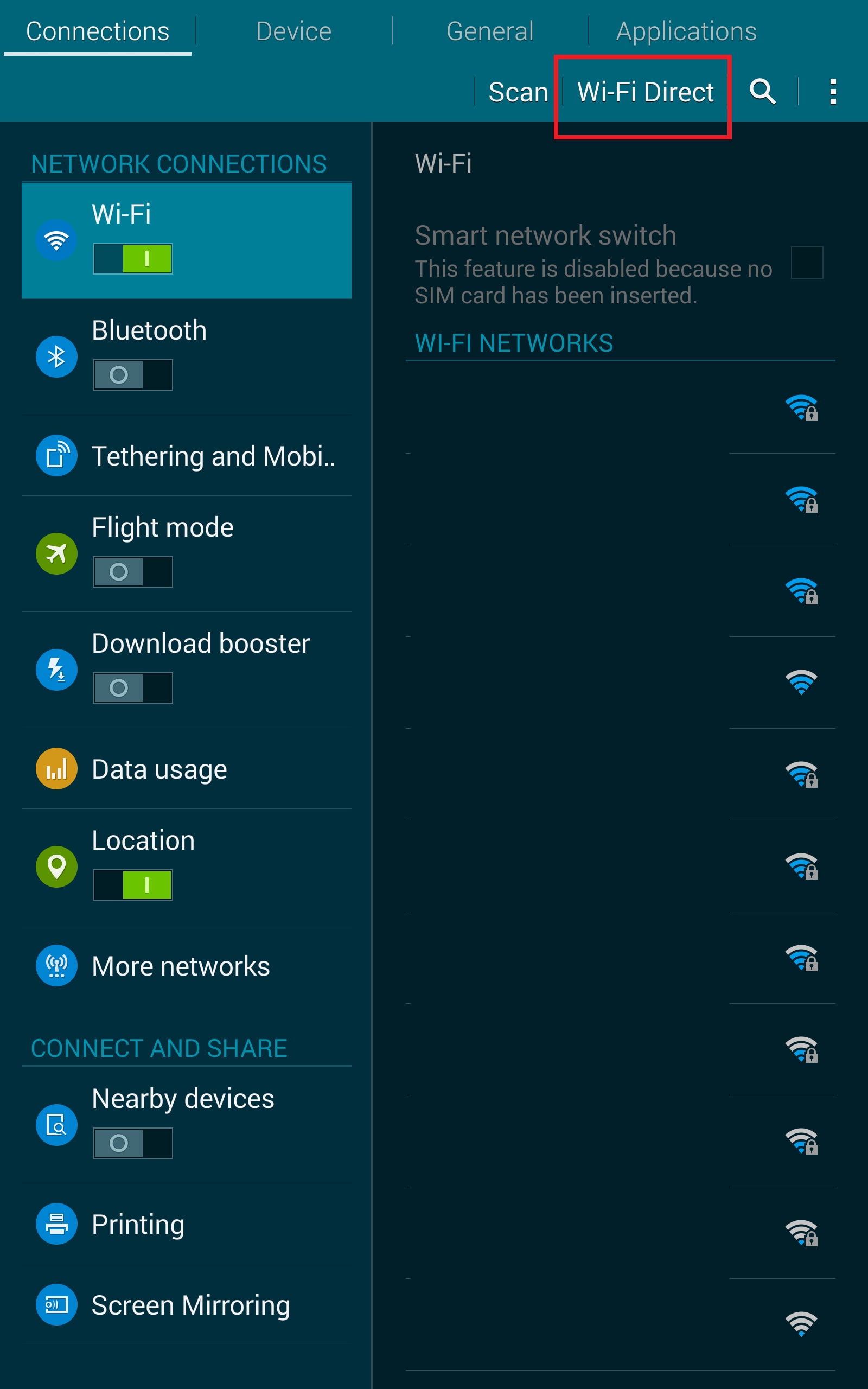
3. Tap Wi-Fi Direct to turn it on.
4. Enable Wi-Fi Direct on the device you want to which you wish to connect.
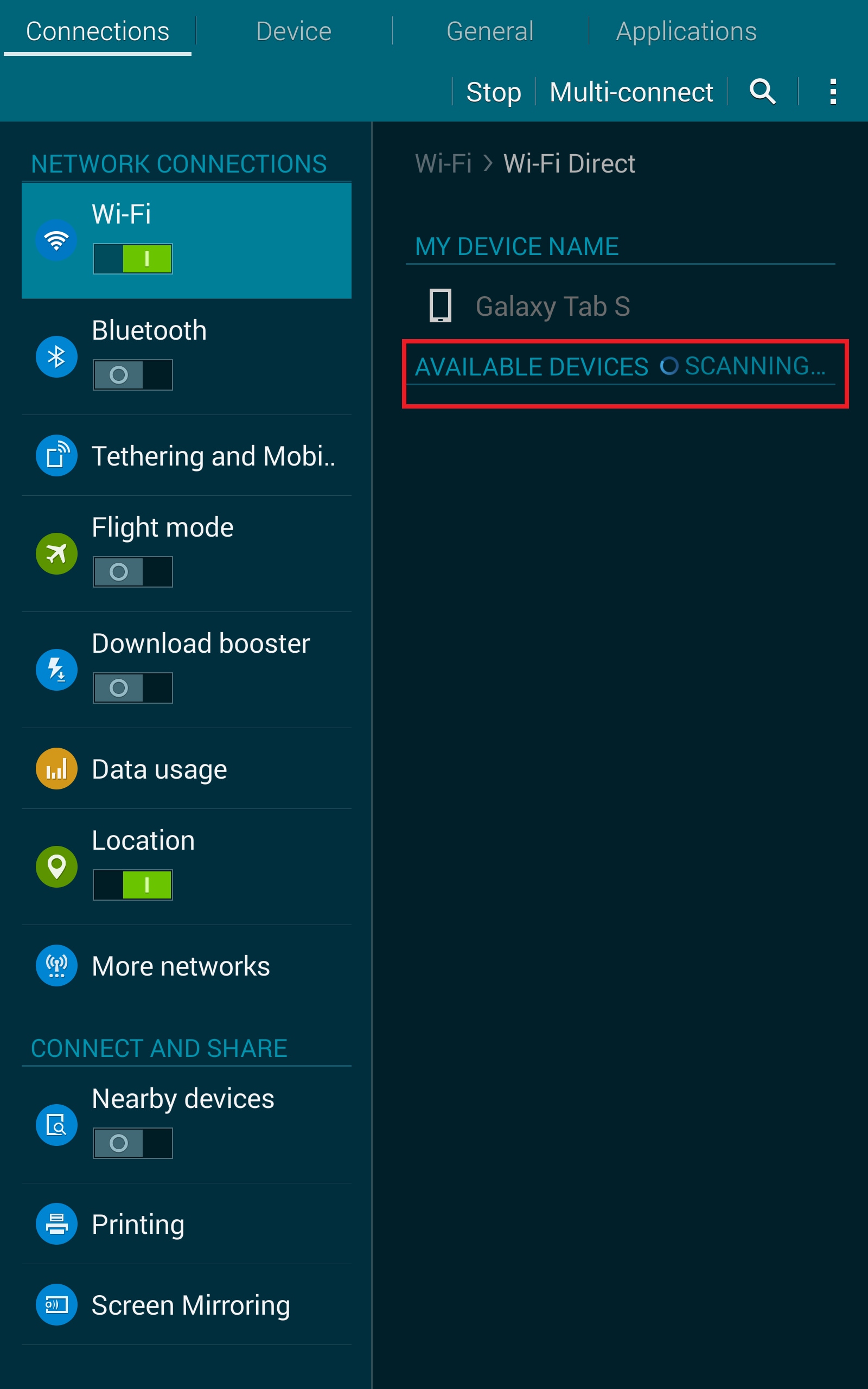
5. On your tablet touch Wi-Fi Direct to scan for the other device.
6. In the scanned list touch the device to which you want to connect or touch Multi-connect to connect to multiple devices.
Note: not all devices support multi-connect.
7. Follow the prompts on both devices to complete the connection. Once connected the device will show as Connected in your list of Wi-Fi Direct devices on your tablet. The icon will display in the Status Bar.
If the above information does not match what your product is showing, you may check the User Manual for your product. If you are unable to solve the problem, please contact us for further assistance.
Thank you for your feedback!
Please answer all questions.
RC01_Static Content : This text is only displayed on the editor page