How do I take pictures by Fast motion mode on Galaxy S6/S6 edge?
Important Note: The information on this page is for Hong Kong products only. Models, sequences or settings will vary depending on location and/or where the product had been purchased. To be redirected to your local support page please click here.
Using Fast motion mode, record a video for viewing it in fast motion. You specify sections of your videos to be played in fast motion. To use Fast motion mode, follow the steps below:
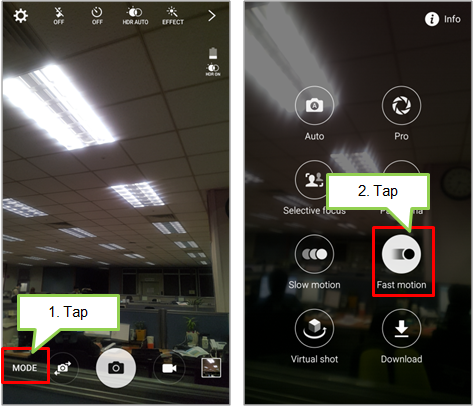
1. On the preview screen of rear camera state, tap MODE.
2. Tap Fast motion.
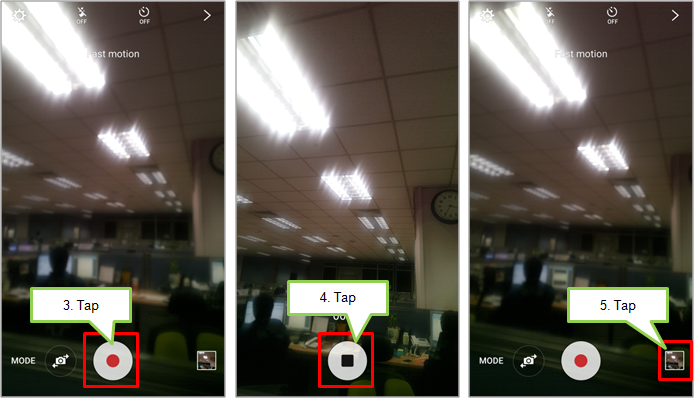
3. Tap Recording button to start recording.
4. When you are finished recording, tap Stop button to stop.
5. To view or edit photos taken by Fast motion, on the preview screen, tap the preview thumbnail.
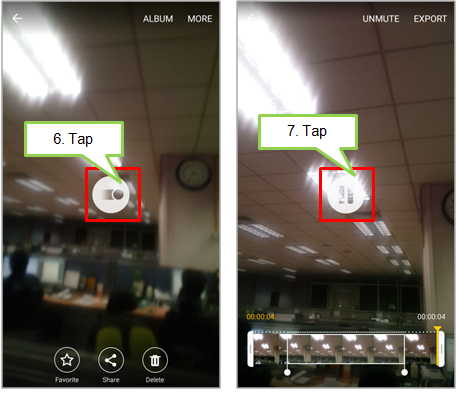
6. Tap Fast motion icon. The video will start playing with a randomly set fast motion section.
7. To edit the fast motion sections by your preference, tap pause to pause playback.
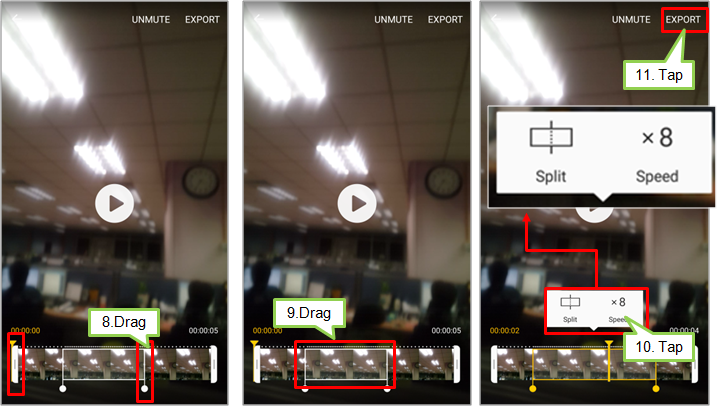
8. Drag the start bracket and the end bracket to the desired point to trim segments of a video.
9. Drag  to select the area of the video to be played in fast motion.
To set a fast motion section more precisely, tap and hold up arrow, and then drag your finger to the left or right to move through the section frame by frame.
10. If you tap the fast motion section,you can use options like speed, split and delete.
11. If completed, tap EXPORT to save the video.
If the above information does not match what your product is showing, you may check the User Manual for your product. If you are unable to solve the problem, please contact us for further assistance.
Thank you for your feedback!
Please answer all questions.
RC01_Static Content : This text is only displayed on the editor page