How to solve screenshot errors on devices with Android 13 OS
Important Note: The information on this page is for Hong Kong products only. Models, sequences or settings will vary depending on location and/or where the product had been purchased. To be redirected to your local support page please click here.
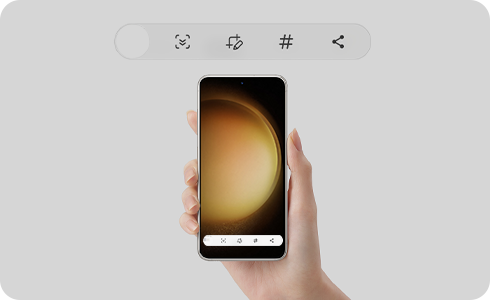
Screen capture allows you to take an image of your phone screen quickly and easily. It is not an app but a feature of the phone. If you are experiencing any errors, such as device application failure when taking screenshots with your Android 13 OS Galaxy device, follow these steps.
Please note: Ensure you have the latest software version downloaded and installed.
How to enable screen capture
To take a screenshot, it is necessary to enable screen capture option.


Step 1. Open “Settings” menu.


Step 2. Tap Apps.


Step 3. Tap more options icon.


Step 4. Open “Special access” option.


Step 5. Tap “All files access” to check what apps have permissions.


Step 6. Search “Samsung capture” and if the access is not allowed, enable it. If the access is already enabled, turn off and on and try taking the screenshot again.
Check the physical condition of your phone
If one button is not functioning properly, is blocked, restricted, or if buttons do not press equally and simultaneously then screenshot capture will not work.
- Check the physical condition of your Galaxy devices buttons.
- Phone cases can restrict button control or access, to ensure this is not impacting your device, try removing the cover.
Check you have sufficient internal memory
If your Galaxy device does not have sufficient internal memory, you will not be able to take a screenshot. Check the devices memory as you may need to perform a memory status check.


Step 1. Open “Settings” menu.


Step 2. Tap “Battery and device care”.


Step 3. Tap “Memory”.


Step 4. Tap “Clean now” if the option is available.
If the above information does not match what your product is showing, you may check the User Manual for your product. If you are unable to solve the problem, please contact us for further assistance.
Thank you for your feedback!
Please answer all questions.
RC01_Static Content : This text is only displayed on the editor page