Use two hands with your Samsung Galaxy devices for maximum productivity
Important Note: The information on this page is for Hong Kong products only. Models, sequences or settings will vary depending on location and/or where the product had been purchased. To be redirected to your local support page please click here.
Samsung has redefined the way we interact with Galaxy phones and tablets. With their expansive screens and advanced features, your devices offer incredible convenience and functionality. You can increase your productivity when using two hands to navigate and control your devices. In this article, we'll explore how you can use both hands to unlock your device's full potential.
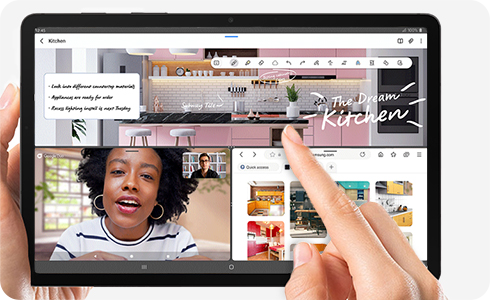
Note: Supported models include the Galaxy Tab S9, Galaxy Z Fold5, and Galaxy Z Flip5.
Moving icons with two hands
Moving icons on a large screen can be tricky. Here are steps to easily move icons around the screen.


Step 1. Touch and hold the icon you would like to move.


Step 2. Keep your finger on the icon, and then use your other hand to swipe to a different screen.


Step 3. Move the icon to where you would like to place it, and then let go.
Moving multiple files between folders with two hands
You can quickly move multiple files to your folders using both hands.
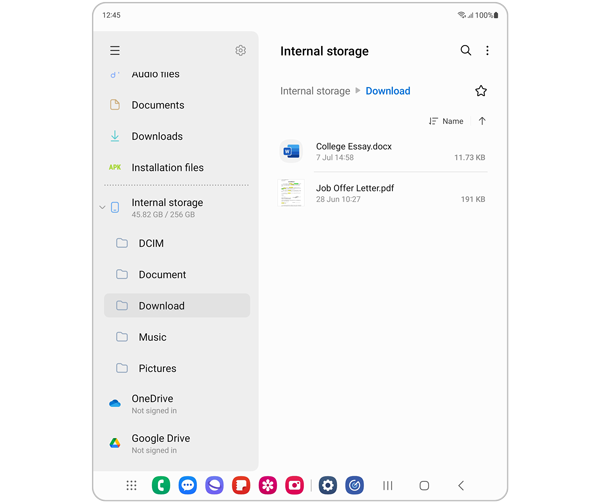
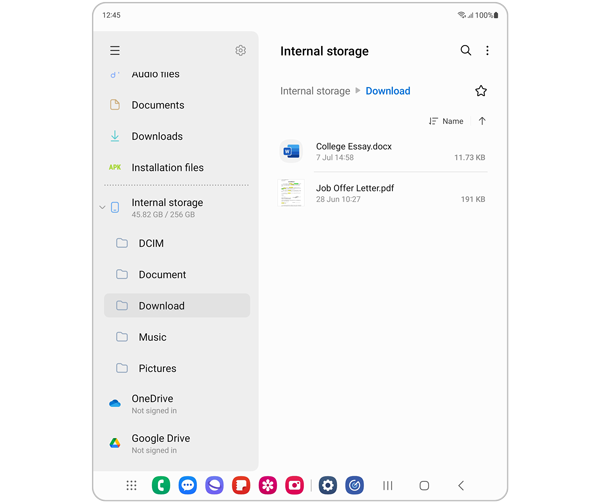
Step 1. Locate the files you would like to move.


Step 2. Touch and hold a file to select it. You can select more than one file by tapping each file until they are highlighted. Then with one hand, touch and hold the file to grab every selected file.
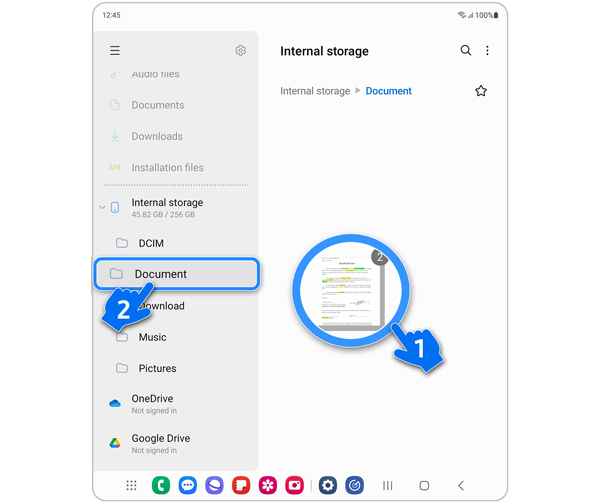
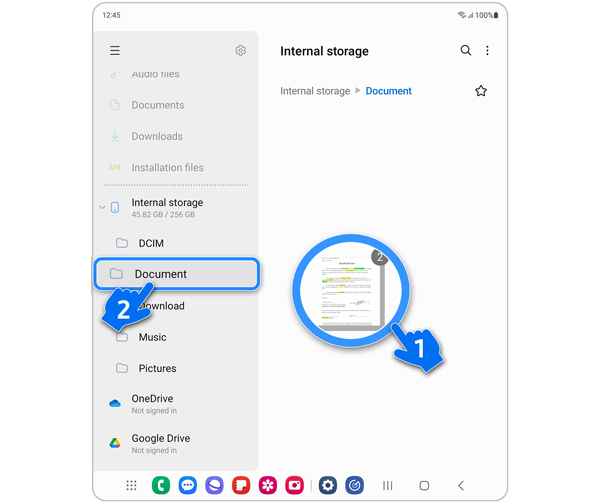
Step 3. Keep your finger on the files, and then use your other hand to find and select the folder you want to move the files to.
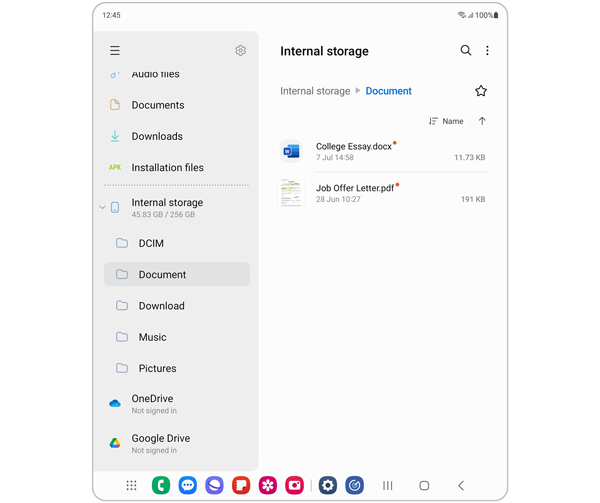
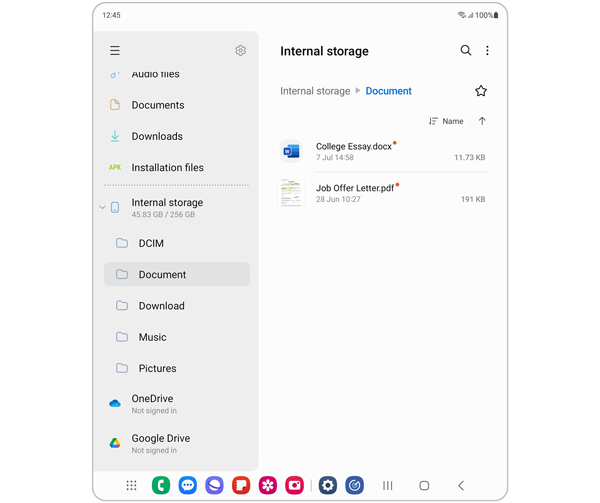
Step 4. Release your finger to move the files to the selected folder.
Moving files between apps
You can also move files or images between various apps. For instance, you can move multiple images from your Gallery to Samsung Notes.
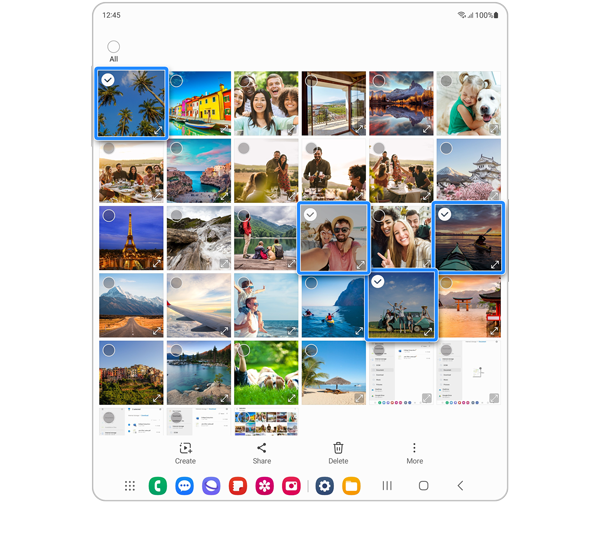
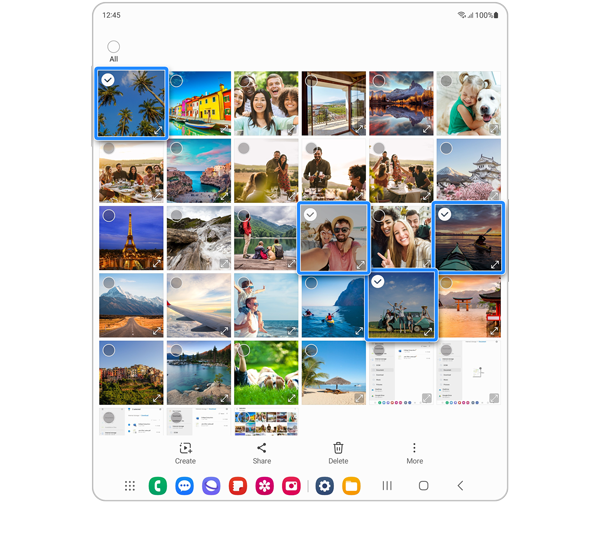
Step 1. Go to Gallery, and then touch and hold an image to select it. You can select more than one image by tapping each image until they are highlighted.
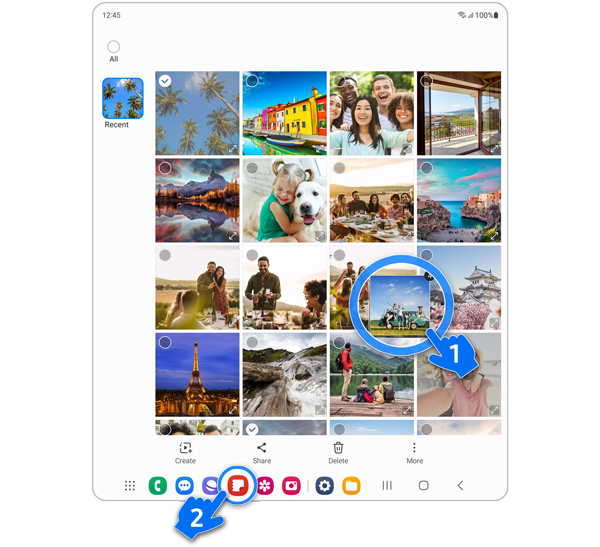
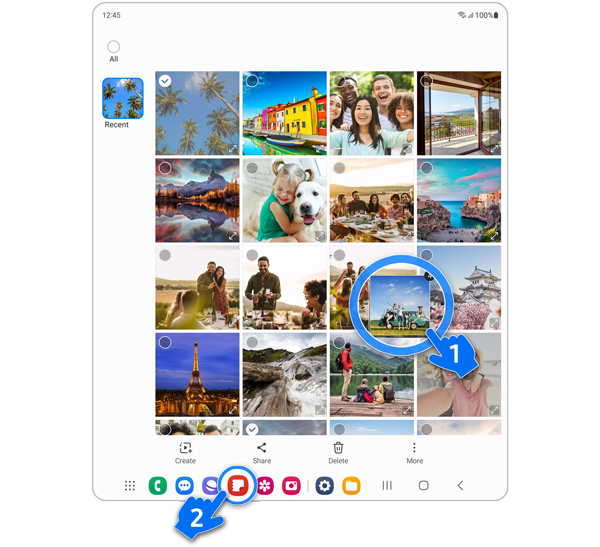
Step 2. Touch and hold any one of the images you selected to grab all the images. With your other hand, tap the Samsung Notes icon at the bottom of the screen to open the app.
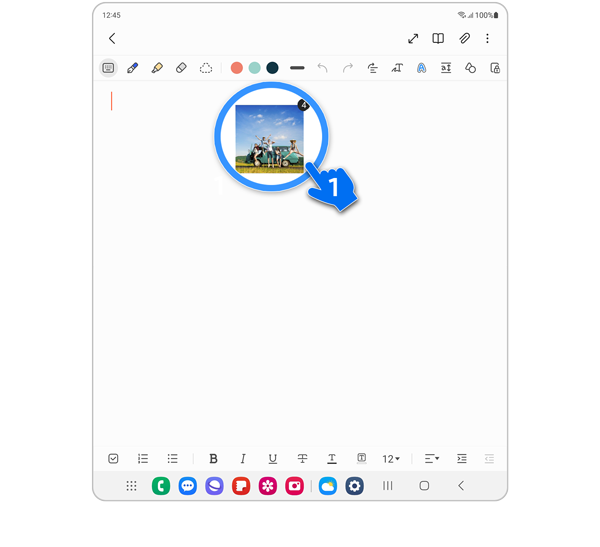
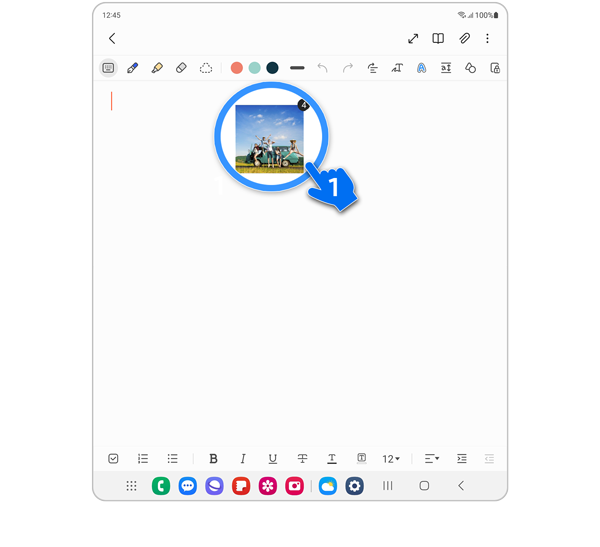
Step 3. Drag the selected images into the Samsung Notes app, and then release your finger.
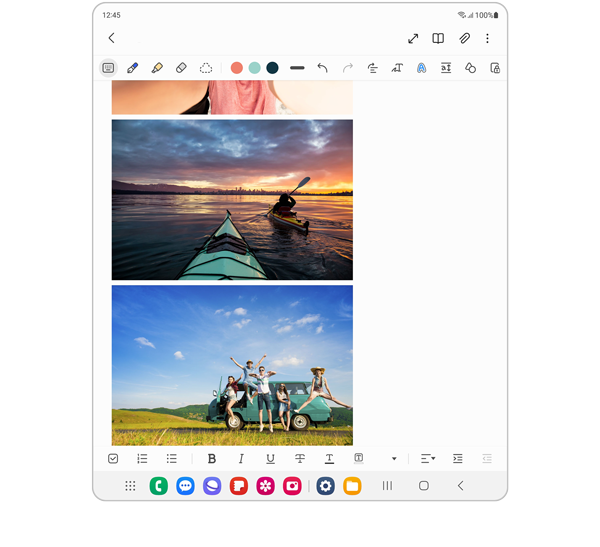
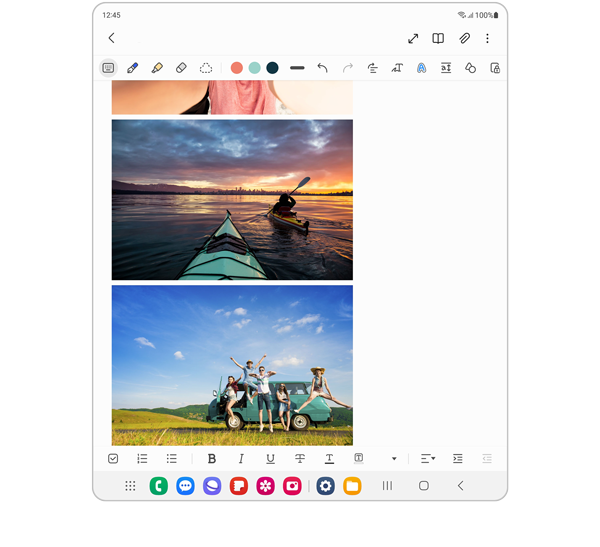
Step 4. Your selected images will be placed in the app. You can repeat these steps with different apps, such as Messages or Gmail.
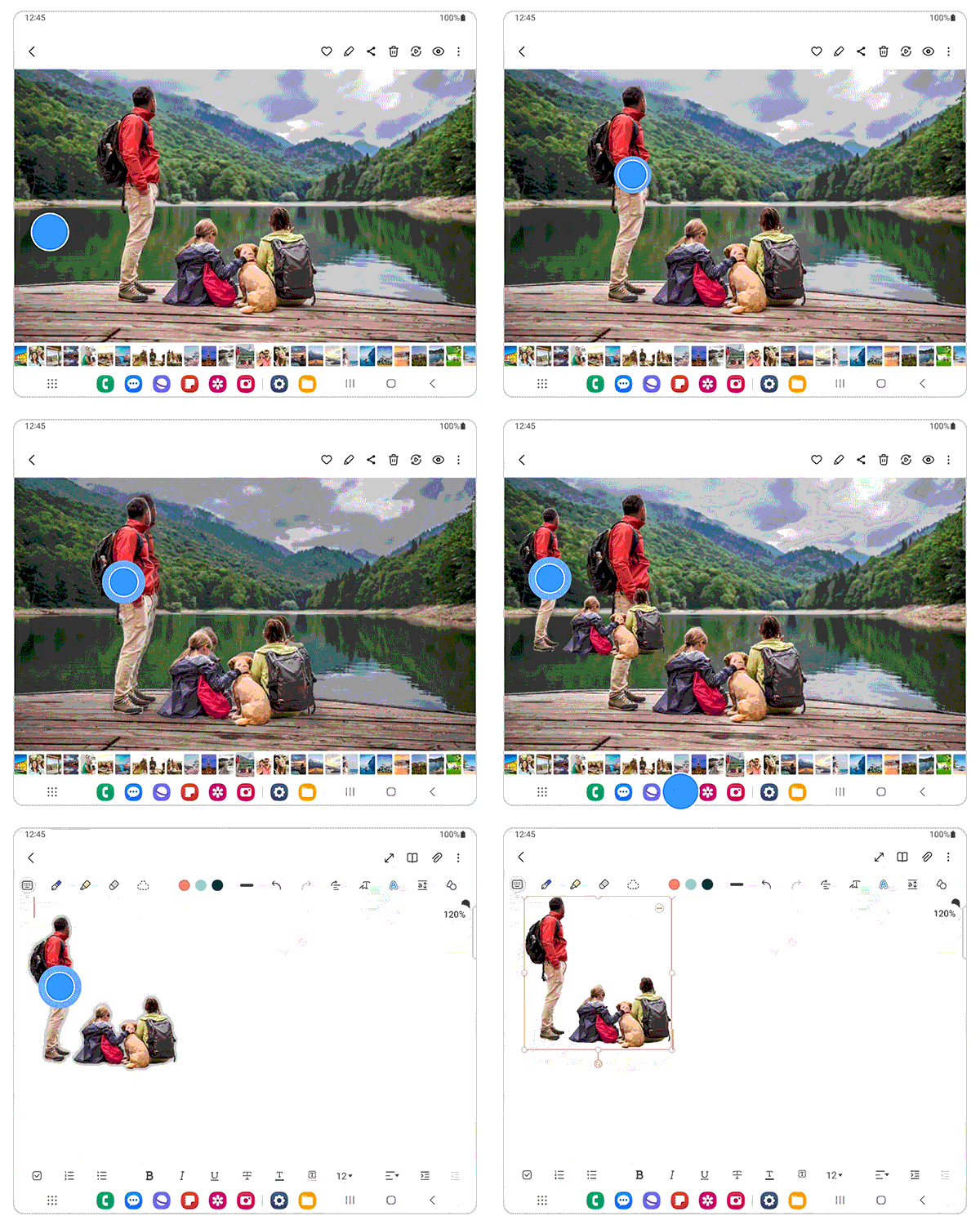
The "Image Clipper" feature allows you to move only certain subject images to other apps. From the Gallery app, try touching and holding the subject in the foreground of the image. This will highlight the subject and allow you to grab its silhouette. Then you can use two-handed operation to bring the cutout image to other apps.
If the above information does not match what your product is showing, you may check the User Manual for your product. If you are unable to solve the problem, please contact us for further assistance.
Thank you for your feedback!
Please answer all questions.
RC01_Static Content : This text is only displayed on the editor page