What to do if your Samsung Galaxy device is not responding to S Pen Air actions
Important Note: The information on this page is for Hong Kong products only. Models, sequences or settings will vary depending on location and/or where the product had been purchased. To be redirected to your local support page please click here.
There are many reasons why your Galaxy device might not respond to S Pen Air actions. This guide will cover troubleshooting steps to address the common issues, such as checking the S Pen’s range, removing third-party accessories, and resetting the pen, if needed.
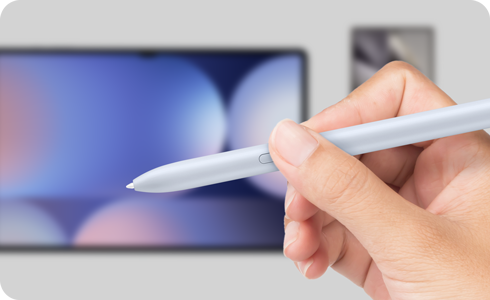
Notes:
- You can only connect an original Samsung S Pen that supports Bluetooth low energy (BLE) to remotely control the apps.
- A pop-up may appear asking to grant permission to utilise the Air action feature in certain apps.
To use Air actions and remote features, the S Pen must stay within 10m of your phone or tablet without obstructions. Beyond this range, the connection may drop. If the connection is lost, insert the S Pen into your phone or attach it to your tablet to reconnect it.
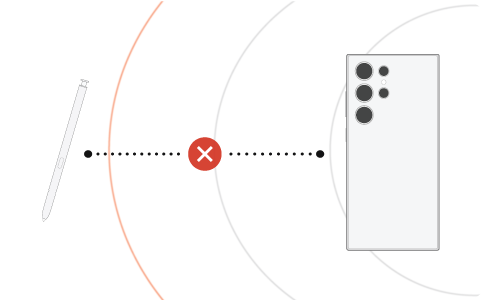
Notes:
- If the S Pen becomes disconnected, it will reconnect to your device automatically if it is brought back into range of your device within five minutes.
- If your S Pen is still not recognised by your phone or tablet, remove any third-party cases or covers from the device. Then, reconnect the S Pen.
Check the battery status
To control apps remotely using the S Pen button, the S Pen must be charged. To charge the S Pen, insert or attach the S Pen into your device. It should only take a few minutes to fully charge. If Air actions is turned off, the S Pen will only charge when your phone or tablet is charging.
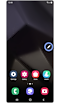

Step 1. Open the Air command menu.
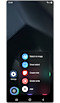

Step 2. Tap the Settings icon.
* The Settings icon will disappear after 5 seconds.
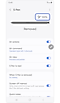

Step 3. Make sure your S Pen has enough battery.
Check if the Air actions are enabled
Ensure that Air actions is enabled in the S Pen settings and that App actions is turned on for the apps you wish to use.
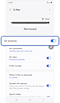

Step 1. In the S Pen setting, enable the Air actions feature > Tap Air actions for detailed settings.
* Bluetooth pairing may be required for certain S Pens.
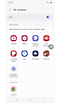

Step 2. Scroll down to the App actions section > You can tap each app to turn the feature off and on.
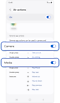

Step 3. Scroll down further and check if Camera or Media is enabled to use app actions.
If all methods above do not work, try resetting your S Pen. Resetting the S Pen will return any customised remote features back to their default settings.
To reset your S Pen, first insert the pen into your phone or attach it to your tablet until it clicks into place. Then follow the instructions below:
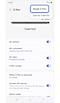

In the S Pen settings, tap More options (three vertical dots) at the top right corner > Tap Reset S Pen.
If the above information does not match what your product is showing, you may check the User Manual for your product. If you are unable to solve the problem, please contact us for further assistance.
Thank you for your feedback!
Please answer all questions.
RC01_Static Content : This text is only displayed on the editor page