How To Set up A Wireless Network Connection on D series Blu-ray player?
Important Note: The information on this page is for Hong Kong products only. Models, sequences or settings will vary depending on location and/or where the product had been purchased. To be redirected to your local support page please click here.
Follow the steps below to setup a wireless connection on your Blu-ray Player (BD-D Models):
Step 1: Plug your Samsung Wireless Adapter, WIS09ABGN or WIS09ABGN2, into the USB port at the front or back of your Player. (Adapter is sold separately)
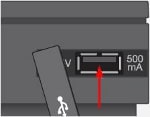
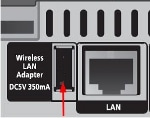
Step 2: In the main menu screen, select Settings and press Enter/ . If you are not currently on the main menu screen, press the Menu button on your remote.
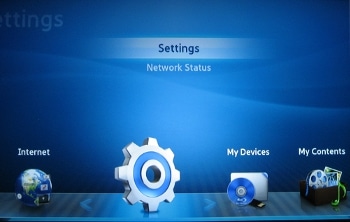
Step 3: Use the ▼ or ▲ button to select Network, then press Enter.

Step 4: Select Network Settings and press Enter.
Step 5: Select Wireless (General) from the network options and press Enter. The Blu-ray Player will search for a network. If your router has SSID broadcasting disabled, your network will not be listed. Temporarily enable SSID broadcasting on your router to establish a connection, or use the manual setup to enter your network settings.
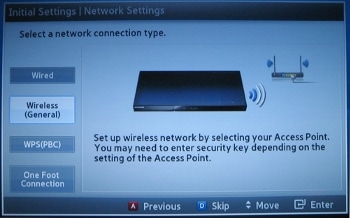
Step 6: Once the network list appears, select your network and press Enter.
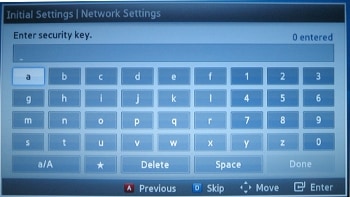
Step 7: If your network is password protected, the password screen will appear. Use the arrow keys and Enter button on your remote to select your password. Once your password is complete, select Done at the lower right corner and press Enter.
Important:
o 26-character WEP keys are not supported by our Blu-ray Players. If you are using a 26-character WEP key you will need to change your password or use WPA encryption on your network.
o To enter upper case letters move to a/A on the keyboard and press enter; to use symbols move to the star icon on the keyboard and press enter. To return to lower case, move to a/A and press enter.
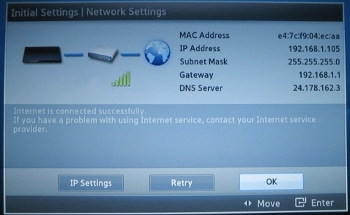
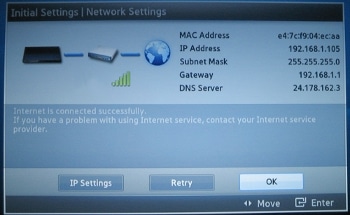
Step 8: The Blu-ray Player will now connect to your network. Once the internet is connected successfully, select OK and press Enter. Your setup is now complete.
Important: If your network connection did not connect successfully, go to Network Connection Test Fails in our Troubleshooting Guides for detailed instructions on resolving this issue.
If the above information does not match what your product is showing, you may check the User Manual for your product. If you are unable to solve the problem, please contact us for further assistance.
Thank you for your feedback!
Please answer all questions.
RC01_Static Content : This text is only displayed on the editor page