How to transfer data from an iPhone or iPad to a new Galaxy device with Smart Switch
When you turn on your Galaxy device for the first time, you will see a welcome page. Tap “iPhone or iPad”. Choose a Wi-Fi network, set your Google account and the SIM card you would like to use and get started with Smart Switch.
Step 1: Ready to switch with SmartSwitch
Open Smart Switch on your new device.




Step 2: Transfer your data to your new device
In the section to transfer your data, select "receive on this phone.


Step 3: Connect your devices
Connect your devices using the cable from your previous device or transfer your data wirelessly using your iCloud account.
In this case, select iPhone/iPad.
NOTE: Some data may not transfer when using wireless transfer via iCloud.


Step 3: Connect your devices
Connect your devices via your old device cable or transfer your data wirelessly using your iCloud account.
NOTE: Some data may not transfer when using wireless transfer via iCloud.


Step 4: Trust your device connection
On your iPhone, tap Trust and enter your passcode. Then tap Next on your new device.





Step 5: Connect
To transfer your data to this phone, open Smart Switch on your iPhone or iPad and scan this QR code.


Step 6: Select your content
Select the content you want to transfer.


Step 7: It allows information to be organized
You can now disconnect the USB cable.


Step 8: Resultados de la transferencia de datos
It will show you the information that was successfully transferred and will also offer app recommendations. Review the suggested compatible apps. Uncheck the apps you don't want to install and tap "Skip" or "Install" to continue.


Step 9: The process is now complete
The information transfer process was successfully completed.


Make sure you have everything needed for a smooth transfer
•Fully charged devices.
•A computer for iTunes or iCloud.
•iPhone Lightning to USB-C Cable or iPhone Lightning to USB Cable and USB-OTG adapter.
Step 1: Connect
Connect your new device to your old iPhone or iPad with a USB-C Lightning cable. To transfer data, confirm you’re trusting as a trusted device on the first phone and keep them together until setup is done on the new device.

Step 2: Select
Choose the data you want to bring over from your old device and then tap Transfer.

Step 3: Import
Start the import and let it finish before doing anything else. Your device will be ready to go in no time, once the data is imported. Once setup is done you can check the status of your transfer in your notifications.

How to transfer display, keyboard and navigation settings to a new Galaxy device
Make the most of your experience with your previous phone with Smart Switch to transfer personalized settings to your new phone conveniently and easily.
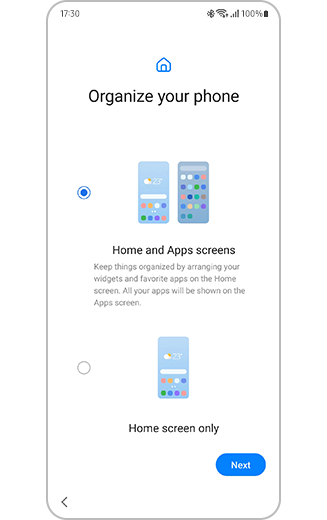
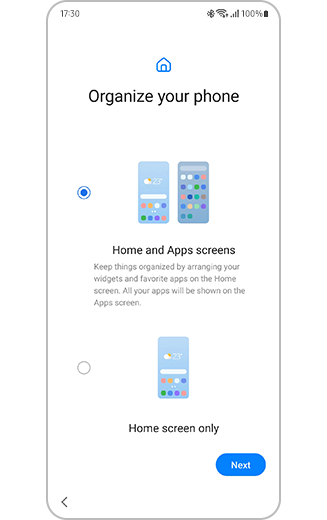
Step 1. Select the options you wish to transfer, to organize your phone and tap next.
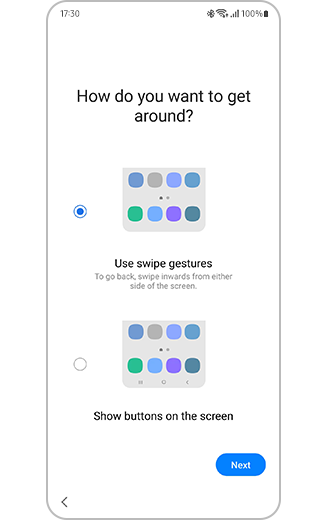
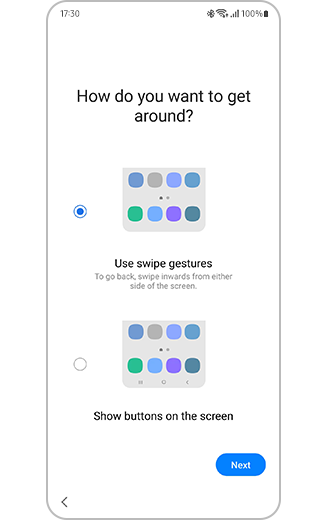
Step 2. Select the options you wish to transfer, to navigate your phone and tap next.


Step 3. Select the options you wish to transfer for your keyboard on your phone and tap next to complete the process.
You are facing problems transferring data from your iOS device?
We recommend this additional link that will help you to solve the problems you are facing: Problems you may experience when transferring from iOS using Smart Switch.


Service Centers


Locate the nearest Samsung service center to have your product checked.

Thank you for your feedback!
Please answer all questions.
Contact Info
WhatsApp
![WhatsApp]()
![WhatsApp]()


Monday to Sunday
8:00 a.m. a 12:00 a.m.
LiveChat
![LiveChat]()
![LiveChat]()


Monday to Sunday
8:00 a.m. a 12:00 a.m.